

Understanding the Ethernet Port on Wi-Fi Extenders
Many consumers purchase Wi-Fi extenders to eliminate dead zones and improve wireless coverage in their homes. However, the small Ethernet port on the back of these devices is frequently overlooked or misunderstood. This port is not merely an optional accessory—it can transform the extender's functionality and significantly enhance network performance. By leveraging a wired connection, users can overcome many of the limitations inherent in wireless signal propagation.
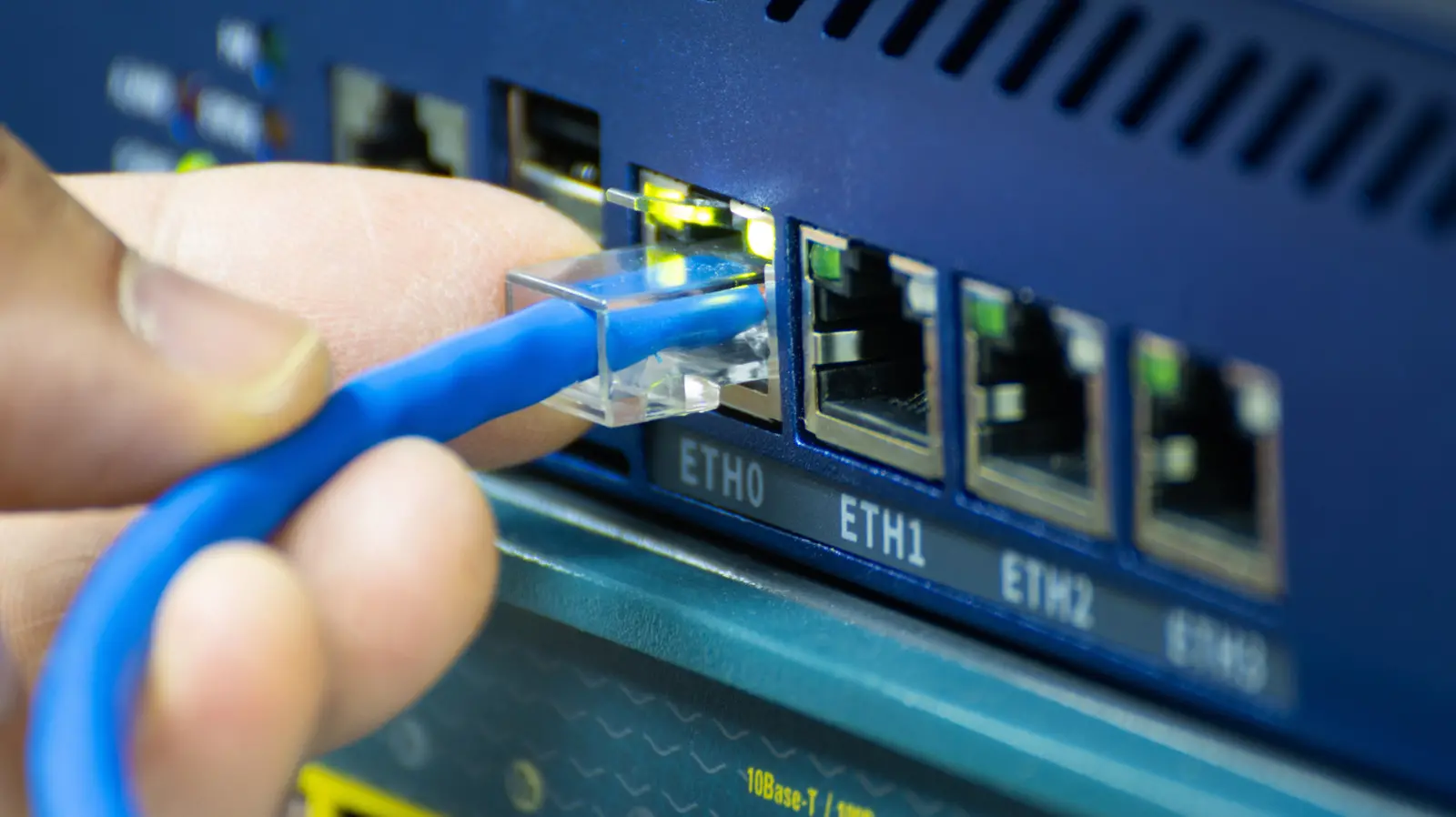
The primary purpose of the Ethernet port is to provide an alternative backhaul connection between the extender and the router. In a typical wireless extender setup, the device receives a Wi-Fi signal from the router and rebroadcasts it. This wireless backhaul inherently suffers from signal degradation, interference, and bandwidth sharing. When you connect the extender to the router via an Ethernet cable, the backhaul becomes wired, eliminating these issues. The extender then acts more like a dedicated access point, offering consistent speeds and lower latency to connected devices.
Practical Uses of the Ethernet Port
Beyond backhaul, the Ethernet port on a Wi-Fi extender can serve as a bridge for devices lacking wireless connectivity. Older desktop computers, gaming consoles like the PlayStation 4 or Xbox One, smart TVs, and network-attached storage (NAS) devices often have only wired Ethernet ports. Plugging these into the extender allows them to join the network without needing a separate Wi-Fi adapter. This wired connection to the extender is especially valuable if the extender itself maintains a robust wireless link to the router, though the best performance occurs when the extender is also wired to the router.
Another less common use is extending the network to outdoor or garage spaces where running Ethernet directly to the router is impractical. The extender can be placed near the boundary of the home, connected to the router wirelessly, and its Ethernet port can feed a switch or a single device in that area. However, this configuration still suffers from the wireless backhaul limitations. For critical applications like video streaming or online gaming, hardwiring the extender to the router is strongly recommended.
Benefits of Wired Backhaul for Home Networks
Using the Ethernet port for backhaul yields several measurable advantages. First, it eliminates the signal loss that occurs every time a wireless signal passes through walls, floors, or appliances. This loss can be as high as 50% per obstacle, depending on materials. Second, wired connections are immune to radio frequency interference from cordless phones, microwaves, Bluetooth devices, and neighboring Wi-Fi networks operating on overlapping channels. Third, the full bandwidth of the extender's Ethernet port (usually 100 Mbps or 1000 Mbps) is available, whereas wireless backhaul often halves the available throughput because the extender must use the same radio for both receiving and transmitting.
Latency also improves dramatically. Wireless extenders introduce additional processing delay, often adding 5–20 milliseconds of latency per hop. A wired backhaul reduces this to near-zero, which is critical for real-time applications like online gaming, video conferencing, or VR. Furthermore, wired backhaul prevents the extender from congesting the Wi-Fi spectrum. When the extender communicates wirelessly with the router, it consumes airtime that could otherwise be used by other devices. With Ethernet, that airtime is freed up, leading to better overall network capacity.
Comparison with Traditional Wireless Extender Performance
When a Wi-Fi extender operates solely wirelessly, its effectiveness depends heavily on placement. Ideally, it should be placed halfway between the router and the dead zone. But this compromises performance because the extender must simultaneously communicate with the router and client devices. The same radio hardware splits time between these tasks, effectively halving the available throughput. In practice, users may see speeds drop by 40–60% compared to a direct connection to the router. Moreover, if the extender is too far from the router, it may maintain a weak connection, resulting in frequent disconnections or slow speeds.
By contrast, an extender using its Ethernet port for backhaul operates at full wired speed between router and extender. Client devices connecting wirelessly to the extender then enjoy the full Wi-Fi capacity of that extender, minus normal wireless overhead. The result is a more stable and faster connection, often approaching the performance of the main router's Wi-Fi. This setup is sometimes called a "wired access point" configuration, and it is the optimal way to use a Wi-Fi extender when wiring is feasible.
Alternative Solutions for Improving Home Wi-Fi
If using an Ethernet cable between the extender and router is not possible, homeowners can explore other solutions. A mesh Wi-Fi system, comprised of multiple nodes that communicate with each other, offers seamless roaming and intelligent band steering. Each node typically has Ethernet ports that can be used for backhaul if wired, but the system also works well wirelessly using dedicated backhaul radios. Mesh systems are generally easier to manage and provide consistent performance across larger homes.
Powerline adapters are another alternative. They transmit network data over the home's electrical wiring, allowing you to create a wired connection in any room with a power outlet. A powerline adapter connected to the router and another near the extender can provide a quasi-wired backhaul without running Ethernet cables. However, performance depends on the quality of electrical wiring and distance between outlets. Finally, MoCA (Multimedia over Coax) adapters use existing coaxial TV cables to create a high-speed wired link, often outperforming both powerline and Wi-Fi extenders.
Some modern devices also support Wi-Fi EasyMesh, a standard that allows extenders from different brands to cooperate, but proprietary mesh systems still offer the best user experience. For renters or those unable to modify their home, a high-power router with beamforming or a mesh extender (a small plug-in device that works with the existing router) may suffice. Mesh extenders rebroadcast the same network name (SSID), eliminating the need to manually switch between networks—a common annoyance with traditional extenders.
Technical Considerations When Using the Ethernet Port
Before wiring an extender via Ethernet, verify that the device supports “access point mode” or “wired backhaul.” Many extenders automatically detect a wired connection and disable the wireless backhaul, but some require manual configuration in the web interface or mobile app. Also ensure the Ethernet cable is in good condition; a damaged or poorly shielded cable can introduce errors and reduce speed. Use Cat5e or Cat6 cables for gigabit speeds.
Placement remains important. Even with wired backhaul, the extender should be positioned to provide optimal Wi-Fi coverage to the dead zone. Avoid placing it inside metal cabinets or behind large metal objects. The extender's antennas should be oriented vertically for best omnidirectional coverage. If the extender supports dual-band or tri-band Wi-Fi, connect client devices to the less congested 5 GHz band when possible, reserving 2.4 GHz for distances and compatible devices.
Finally, understand that the extender's Ethernet ports are typically limited to 10/100 or 10/100/1000 Mbps. If your internet plan offers speeds above 100 Mbps, ensure the extender has gigabit ports to avoid bottlenecking. Also note that if multiple wired devices are connected to the extender, they share the single backhaul link. In a wired backhaul scenario, using a network switch downstream of the extender can expand connectivity without overloading the extender's CPU.
Real-World Scenarios and Troubleshooting
Consider a two-story home where the router is in the living room on the ground floor. The upstairs office suffers from weak Wi-Fi. A typical wireless extender placed on the first floor ceiling may still provide an unreliable connection. Running an Ethernet cable from the router to an extender in the office creates a strong wired backhaul, and the extender then broadcasts a robust Wi-Fi signal to the rest of the floor. This setup is common in homes with structured wiring or where cables can be hidden along baseboards.
Another scenario involves a detached garage or workshop. A wireless extender placed inside the house may struggle to reach the garage due to distance and building materials. Using a powerline adapter to bring a network signal to the garage and then connecting it to an extender's Ethernet port can work, but a dedicated outdoor-rated access point with a hardwired connection is more reliable. If the extender's Ethernet port is used to connect a computer in the garage, ensure the extender has a strong wireless link to the router—otherwise, the connection will be slow.
Troubleshooting common issues: If the extender's Ethernet port does not seem to work, check if the device is in the correct mode. Sometimes the port is disabled by default or only functions as a LAN port for client devices, not for backhaul. Consult the user manual. If speeds are still low after wiring, verify that the extender is not connected to a switch or powerline adapter that itself has a poor connection. Also check for IP address conflicts by ensuring the extender's DHCP server is disabled when in access point mode.
For gamers and streamers, latency jitter can be a problem even with wired backhaul if the extender's processor is overloaded by multiple simultaneous connections. In such cases, a dedicated wired access point (like an old router configured as a bridge) may outperform a consumer extender. However, for typical household use, a modern Wi-Fi extender with wired backhaul offers excellent value and performance.
Source: SlashGear News