

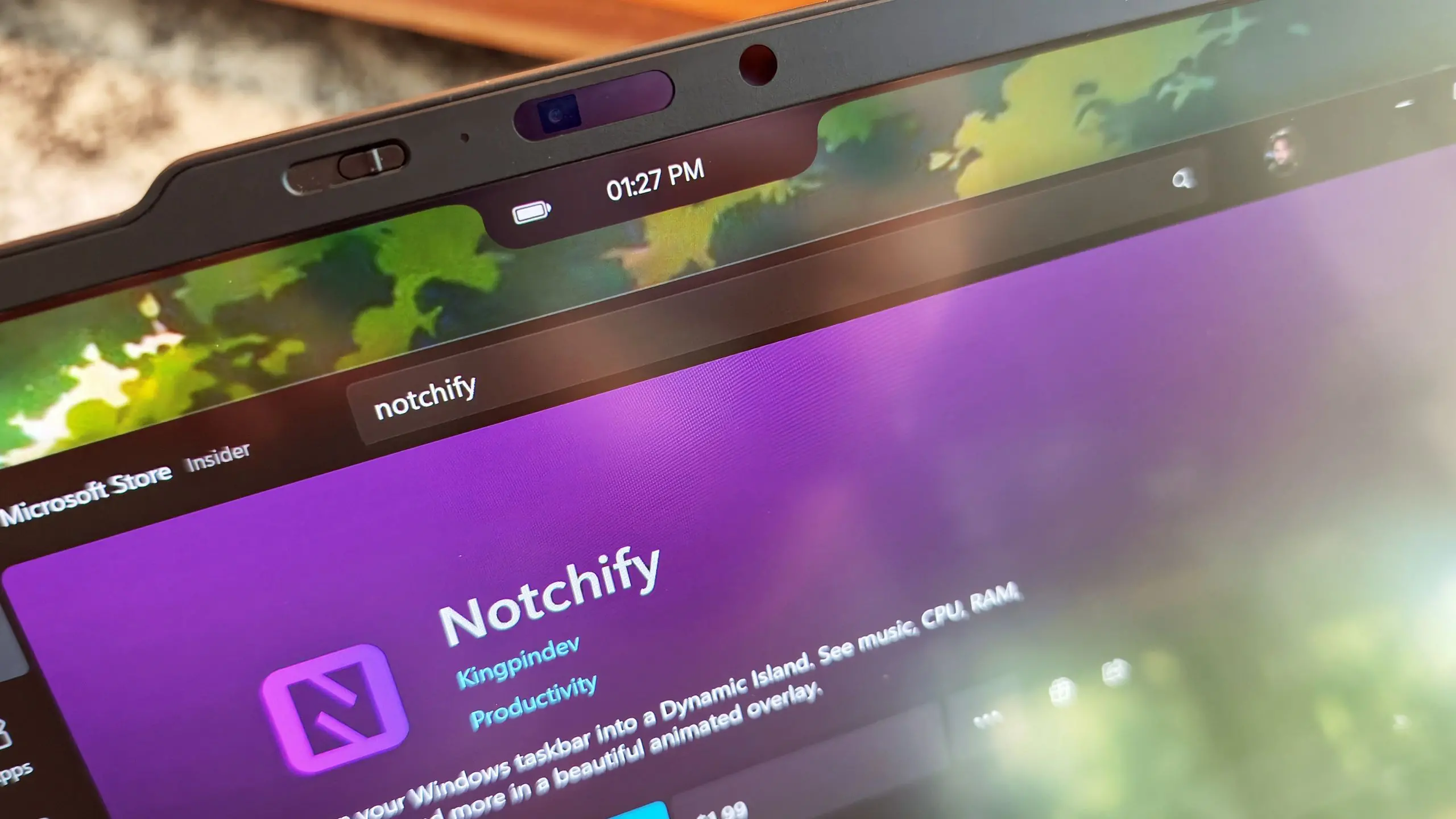
The tech world loves to borrow ideas across platforms. When Apple introduced the Dynamic Island with the iPhone 14 Pro, it turned a hardware cutout into a fluid, software-driven interface element. Now, a new utility called Notchify brings similar flair to Windows 11, morphing the top of your display into an interactive hub for media, timers, and notifications. The result is surprisingly useful in daily computing, even if the aesthetic feels like a step too far for some.
What Is Notchify?
Notchify is a lightweight Windows 11 application that creates a virtual notch at the top-center or top-left of your screen. This black pill-shaped overlay resembles the hardware notch found on recent MacBook models and the Dynamic Island on Apple phones. But unlike a physical cutout, Notchify's notch is purely software-driven. It lives on top of your desktop and can expand to show contextual information.
The core idea is to give Windows users a quick-access panel for system events. When you play music or watch a video, the notch displays album art, playback controls, and a progress bar. When a timer is running, it shows a countdown. When you receive a notification, the notch expands with a preview and action buttons. It is a clever fusion of the MacBook notch and the iPhone's Dynamic Island, translated into the Windows environment.
How Does Notchify Work?
Notchify integrates with Windows' built-in media session APIs. That means it can detect any media playing through apps like Spotify, YouTube, or a local video player. The overlay stays hidden while you work, but as soon as audio or video starts, it fades into view. You can hover over the notch to expand it, or click it to toggle between controls. Another click collapses it back into a compact pill.
The notification integration works through the Windows notification system. Incoming alerts from messaging apps, email clients, or system services appear inside the notch activity. You can reply directly from the expanded view for supported apps, or dismiss them without switching windows. The utility also supports multiple timers and a pomodoro mode, making it a surprisingly effective productivity companion.
What sets Notchify apart from simple overlay widgets is its smooth animations. The expansion and collapse are fluid, with spring-like physics that mimic Apple's polish. It respects your taskbar and window snapping, and it can be repositioned across the top edge. You can also choose between a MacBook-style full-width notch or a smaller iPhone-style island.
Is the Dynamic Island Concept Practical on Windows?
On the iPhone, the Dynamic Island serves as a clever way to mask hardware limitations. On Windows, there is no physical notch to hide. So why would anyone want a software notch covering part of the screen? The answer lies in how we manage media and system status.
A dedicated media control center at the top of the screen is genuinely useful. Instead of alt-tabbing to Spotify or opening a separate widget, you can pause, skip, or scrub through audio without leaving your current app. For people who listen to music while coding, writing, or gaming, that small convenience adds up. The timers are also handy for timeboxing tasks, and the notification previews let you triage alerts without breaking your flow.
There is a secondary benefit: the notch provides a visual anchor. In a multi-monitor setup, placing the notch on a secondary display allows you to keep an eye on media or background tasks while focusing on primary work. It effectively turns the top of your screen into a mini mission-control dashboard.
The ick Factor: Why It Feels Awkward
Despite its utility, Notchify has a clear downside: it is an imitation. The Dynamic Island is tightly integrated into Apple's hardware and software ecosystem. On Windows, the design language is different, and a floating black pill can look like a glitch or a broken screen at first glance. Many users will find it aesthetically off-putting, a bit like putting a Ferrari badge on a Ford.
There is also a functional trade-off. The notch takes up valuable screen real estate, and while it is not always visible, it overlaps with the top edge of windows and web browsers. Some apps have their own toolbars and menu bars at the top, so the notch can obscure important buttons. You can set it to avoid maximized windows, but then you lose the always-on-top utility.
Performance is another concern. Notchify is built on Electron, a framework that is known for relatively high memory usage. In our testing, it consumed around 250 MB of RAM with the interface idle. That is not trivial on a budget laptop, and for a tool that is essentially a cosmetic enhancement, some may find the resource footprint unjustifiable.
How Notchify Compares to Apple's Dynamic Island
Apple's Dynamic Island on the iPhone does more than show media controls. It integrates with live activities, maps directions, sports scores, and even the Face ID authentication. Notchify, at least in its current iteration, cannot reproduce that depth. It is limited to media, timers, and notifications. There is no API for third-party developers to create custom live activities. It also lacks the integrated camera and Face ID sensors that make Apple's island feel alive.
However, on macOS, the Dynamic Island as such does not exist. The MacBook has a physical notch that houses the camera, but it does not expand into interactive controls. Notchify actually gives Windows users more functionality than Mac laptop users get natively, which is an ironic twist. You can have an interactive island on a platform where Apple has never shipped one.
Installation and Customization
Setting up Notchify is straightforward. You download the installer from the official website, run it, and the notch appears on your main monitor. The first-run experience walks you through the settings: choose the notch style, position, and behavior. There are options for dark and light mode, though the notch works best in dark mode because it is designed to be a black element.
You can adjust the width and height of the notch, though Apple's Dynamic Island has a specific proportion. If you set it too large, it will look like a banner rather than an elegant cutout. If you set it too small, the icons become cramped. There is also a setting to auto-hide the notch when no media is playing, which reduces the visual impact.
For power users, Notchify includes a command-line interface and a JSON configuration file. You can script it to trigger based on app presence or time of day. For example, you can make the notch appear only during working hours or only when a specific audio device is active. Those customization options are welcome, especially for a niche utility.
Privacy and Security Considerations
Because Notchify reads notification content, it requires access to system notifications. In Windows, this is a standard capability, and the app processes everything locally. There is no cloud sync or telemetry, according to the developer. However, users should be aware that any notification—including those containing sensitive messages—could be visible in the expanded island. If you are pragmatic about digital privacy, that is a minor concern, but it is worth noting.
The app also has permission to control media playback, which means it can read the title, artist, and album art of whatever is playing. Again, this data remains on your machine. No network connections are made during media playback. The developer provides a privacy policy that states no data is collected. Still, because it uses Electron, the underlying Chromium engine may have periodic update checks, which are common for Electron apps.
Alternatives and the Future
Notchify is not the only way to get a Dynamic Island experience on Windows. Some users use Rainmeter skins to create a fake notch with media controls. Others rely on the native Windows 11 Widgets panel or the Snap Layouts system. But none of these offer the combined media, timer, and notification integration in a single element. Notchify's uniqueness is the core reason it has gained attention.
The developer has plans to introduce more features, including a plugin system and live activity support. If that happens, Notchify could evolve from a gimmick into a genuinely useful productivity booster.. It might even inspire Microsoft to consider a native Dynamic Island concept in a future version of Windows. After all, Windows 11 already emphasizes centered taskbars and fluid animations.
For now, Notchify occupies a strange niche. It is a well-executed copycat that proves the underlying concept has merit on desktop operating systems. The real question is whether you can overlook the imitation factor long enough to enjoy the convenience. If you are open-minded, Notchify might earn a permanent place on your desktop. If you prefer originality, it will likely be just another fleeting curiosity in the long history of cross-platform design borrowings.
The fact that a third-party tool can recreate the Dynamic Island experience on Windows—and make it useful—is a testament to how software innovation often travels. Maybe the future is not about copying the notch itself, but about finding new ways to make system status glanceable and interactive. Notchify offers a compelling glimpse of that future, one where the top of the display is not just a blank area but a dynamic, actionable layer of the operating system.
Source: Windows Central News